Microsoft Teams has grown far beyond basic chat and video calls. For many Australian businesses, it is now the working hub for meetings, files, calls, tasks, approvals and day-to-day collaboration. The problem is that many teams only use the visible basics, while the most useful tools sit unused, misconfigured or ungoverned.
This guide breaks down the Microsoft Teams features that matter most for business use in 2026. It is written for owners, managers and operations teams who want less noise, fewer lost files, better meetings and a safer Microsoft 365 environment.
Why Microsoft Teams features matter for growing businesses
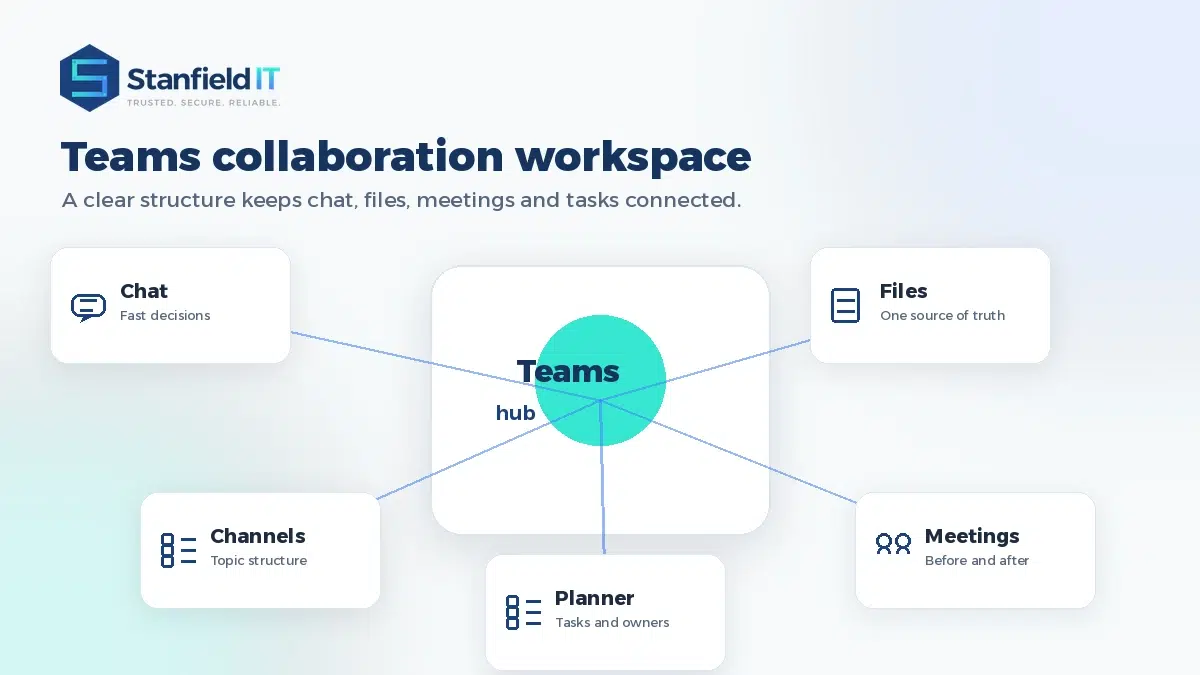
When Teams is set up well, staff do not need to hunt through email chains, desktop folders, shared drives and separate project tools to understand what is happening. Work is organised around teams, channels, conversations, files and tasks. People can move from a message to a meeting, from a meeting to a task, and from a task to the right document without leaving the Microsoft 365 workspace.
The challenge is that Teams can become messy quickly. Channels multiply, old groups remain active, files end up in the wrong place, and external sharing becomes hard to track. That is why businesses should not only ask “What can Teams do?” They should ask which features are useful, which ones need governance, and which ones will genuinely make work easier.
The best approach is practical. Start with the business problems you are trying to solve: too many meetings, poor handovers, scattered files, slow approvals, remote staff feeling disconnected, or security concerns around client information. Then use the right Teams capability to solve that problem properly.
The 40 best Microsoft Teams features to use in 2026
Not every organisation needs every feature. Some tools also depend on your Microsoft 365 licence, Teams settings and security policies. Use this list as a business-focused checklist for getting more value from Teams without overwhelming your staff.
Collaboration and communication
Teams and channels. Organise work by department, project, client or function so conversations and files stay in context.
Standard channels. Use standard channels for open team-wide discussions where everyone in the team needs visibility.
Private channels. Keep sensitive discussions limited to invited members, such as leadership, HR, finance or confidential projects.
Shared channels. Collaborate with selected people inside or outside your organisation without creating a full guest-access sprawl.
Threaded channel conversations. Keep replies attached to the right topic instead of creating long, confusing chat streams.
One-to-one and group chat. Use quick private conversations for small decisions that do not need a full channel post.
@mentions and activity feed. Bring the right people into a conversation while giving staff one place to track important updates.
Pinned chats and important messages. Keep high-value conversations easy to find, especially for managers juggling several projects.
Meetings and events
Teams calendar meetings. Schedule meetings directly from Teams or Outlook and keep the invite, chat and files together.
Meeting chat. Capture questions, links and follow-up points without interrupting the speaker or losing context afterwards.
Screen sharing. Share a whole screen, a window or a presentation so meetings stay visual and practical.
Meeting notes and agendas. Prepare the meeting before it starts and capture outcomes while everyone is still present.
Live captions. Help people follow discussions more easily, especially in noisy environments or hybrid meetings.
Transcription. Create a searchable meeting record so absent team members can catch up without relying on memory.
Meeting recordings. Record important sessions such as training, client briefings, project kick-offs and policy updates.
Meeting recap. Review recordings, transcripts, shared files and notes in one place after the meeting.
Copilot in Teams. With the right licence, use AI to summarise meetings, identify decisions and surface action items.
Breakout rooms. Split large meetings into smaller working groups, then bring everyone back together for decisions.
Webinars. Run structured online events with registration, attendee management and reporting.
Town halls. Deliver company-wide updates or large audience presentations with more control over the attendee experience.
Files, knowledge and project work
File sharing in Teams. Share documents in chats or channels so people can work from the same version.
SharePoint-backed channel files. Store channel files in SharePoint, giving the business better structure, permissions and continuity.
OneDrive in Teams. Access personal work files, recently used documents and shared files without jumping between apps.
Real-time co-authoring. Let multiple people work in Word, Excel and PowerPoint files at the same time.
The Shared tab. Find files and links shared in a channel without scrolling through old conversations.
SharePoint pages and lists as tabs. Bring project pages, document libraries, registers and useful resources into the channel.
Wiki and notes alternatives. Use OneNote, Loop or SharePoint pages for knowledge that needs to live beyond a chat thread.
Search. Find people, messages, files and conversations faster when naming and channel structure are consistent.
Tasks, workflows and apps
Planner in Teams. Turn conversations into tasks, assign owners and track project progress in one place.
Loop components. Collaborate on checklists, tables and notes inline so people can edit the same content in real time.
Approvals. Create lightweight approval workflows for requests, sign-offs and operational decisions.
Polls and Forms. Gather quick feedback during meetings or from channel members without starting another email thread.
Workflows. Use automation to reduce repetitive admin, such as notifications, reminders and simple handovers.
App integrations. Bring selected business apps into Teams so staff can work from a central place.
Calling, rooms and customer communication
Teams Phone. Use Teams as a business calling platform where it suits your environment, licensing and call requirements.
Auto attendants. Route callers to the right person or department using menus and business-hours rules.
Call queues. Manage inbound calls for support, sales, reception or service teams that share responsibility.
Voicemail. Deliver voicemail to users in Teams and email so missed calls are easier to follow up.
Teams Rooms. Improve meeting-room experiences for hybrid teams with dedicated room hardware and room-friendly meeting controls.
Premium meeting protection and governance. Use the right policies, sensitivity settings and access controls for confidential meetings and regulated work.
Choosing Microsoft Teams features without creating more noise
The biggest mistake businesses make is enabling tools without deciding how people should use them. Teams works best when there are simple rules for naming, ownership, access, external sharing and lifecycle management. Staff should know when to use a chat, when to use a channel, where files belong and how meeting actions are tracked.
For example, a leadership team may need private channels, sensitivity controls and tighter meeting settings. A project delivery team may need standard channels, Planner, SharePoint document libraries and clear naming conventions. A client-facing support team may need call queues, shared knowledge and fast escalation paths through your IT Support & Help Desk process.
The most valuable Microsoft Teams features are the ones staff will actually use. Keep the structure simple, train people in plain English, and review usage regularly. A clean Teams environment should make work easier, not become another place where information gets buried.
Common mistakes that make Teams less effective
Teams often becomes messy because it grows organically. Someone creates a team for a project, another person creates a similar one, old guest users remain active, and no one is quite sure which channel holds the final version of a document. The software is not the problem; the structure is.
Watch for these common issues:
Too many teams with no clear owner.
Private chats being used for work that should be visible in a channel.
Files saved across desktop folders, OneDrive, SharePoint and Teams with no agreed rule.
External users being added without review.
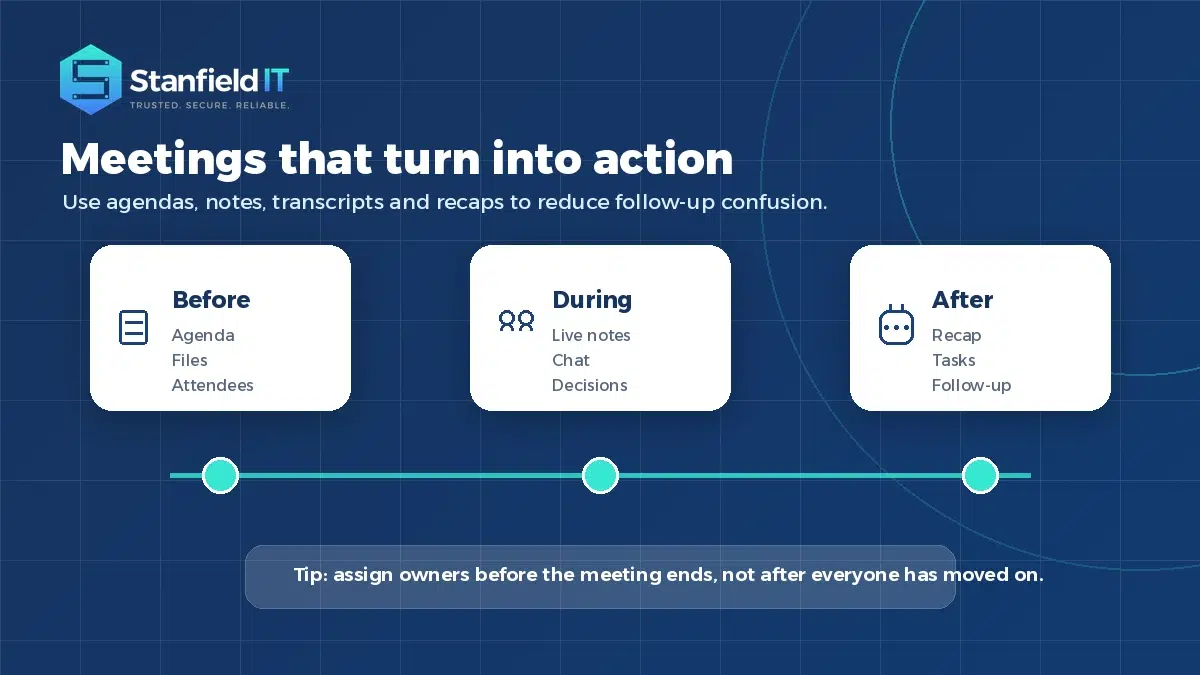
Meetings ending without actions, owners or due dates.
Licences being assigned without checking whether users need the included features.
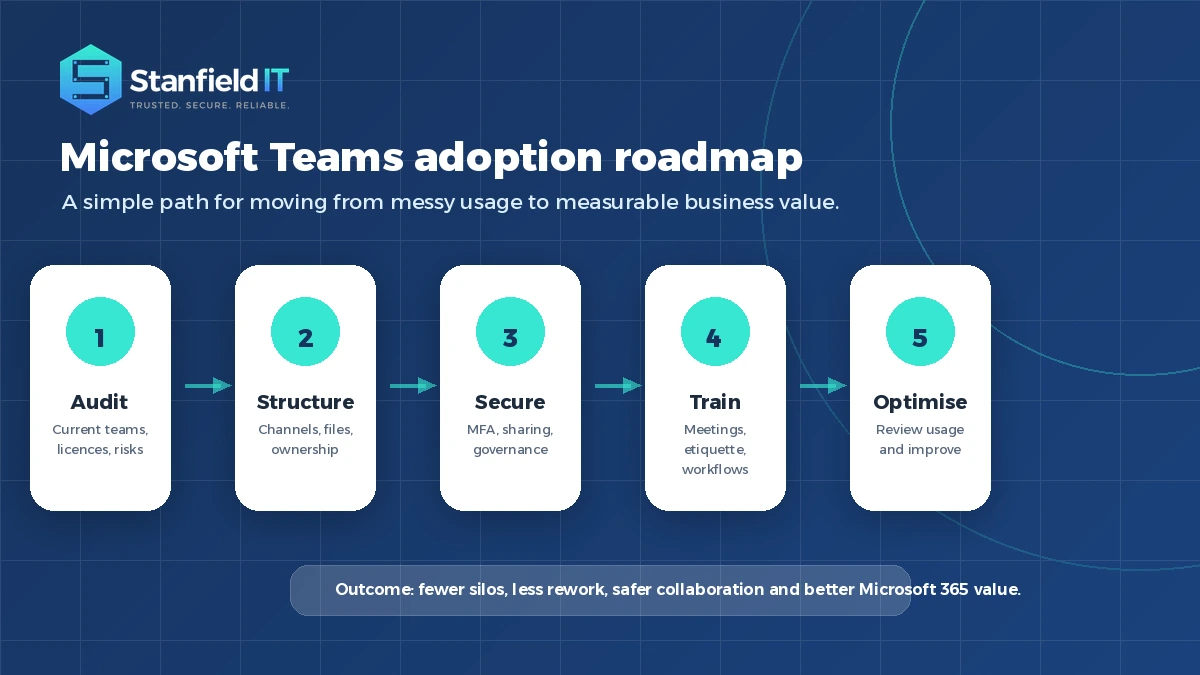
A healthier setup starts with a review. Remove or archive old teams, agree a channel structure, review guest access, map file locations and check licence usage. Then provide practical training so staff know how to use the tools consistently.
How Stanfield IT helps businesses get more from Microsoft Teams
Stanfield IT helps Australian businesses plan, secure and support Microsoft 365 environments so Teams becomes a reliable business tool rather than a messy collection of chats. Our Microsoft 365 Support & Migration service can assist with Teams structure, SharePoint, OneDrive, user onboarding, permissions and ongoing support.
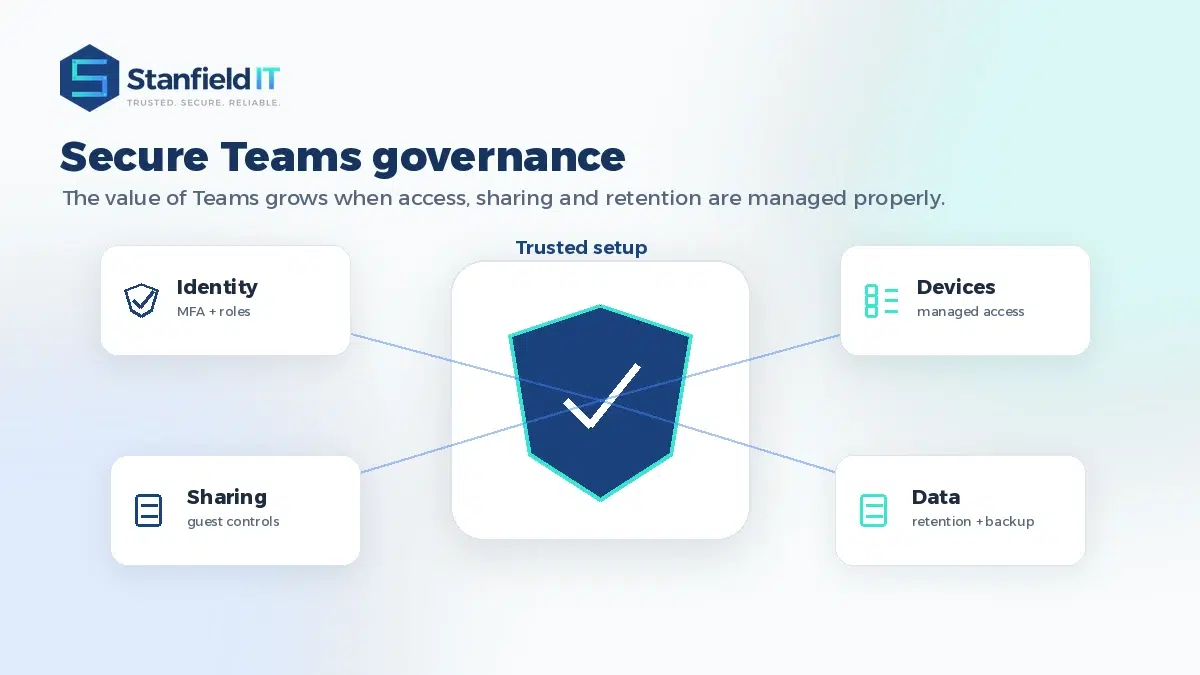
We also help businesses look at Teams through a security lens. That includes identity controls, external sharing settings, admin access, device access, data protection and practical Cloud Security improvements. The goal is not to lock everyone down so tightly that work becomes frustrating. The goal is to make collaboration safe, simple and sustainable.
If your business has already adopted Teams but feels it is not getting full value from it, the next step is usually not another app. It is a clearer Microsoft 365 structure, better governance and a support partner who understands how your people actually work.
Microsoft Teams FAQs
Which Teams tools are most useful for small businesses?
The most useful features are usually channels, meetings, file sharing, OneDrive, SharePoint-backed files, Planner, meeting notes, recordings and guest access controls. These solve everyday problems without needing a complex rollout.
Do all Teams tools come with every Microsoft 365 licence?
No. Feature availability depends on your Microsoft 365 plan, Teams settings and any add-on licences such as Teams Phone, Teams Premium or Microsoft 365 Copilot. Check licensing before planning a rollout.
Is Microsoft Teams secure enough for business use?
Teams can be very effective for business collaboration, but security depends on configuration. MFA, access policies, guest controls, sharing settings, device management and admin permissions should all be reviewed.
How do we stop Teams from becoming messy?
Start with a simple structure. Define naming rules, ownership, when to use channels versus chat, where files should live, how guests are approved, and when inactive teams are archived.
Can Stanfield IT help us improve an existing Teams setup?
Yes. Stanfield IT can review your existing Teams and Microsoft 365 setup, clean up structure, improve security, support users, review licences and help staff adopt better ways of working.
Build a better Teams environment
The best Microsoft Teams features are not just the newest ones. They are the features that help your people communicate clearly, find information faster, run better meetings and protect business data. Used well, Teams can become the centre of a more productive Microsoft 365 environment.
If your business wants a cleaner, safer and more effective Teams setup, Stanfield IT can help you review what you have, fix what is not working and build a practical roadmap for better collaboration.