


A tenant-to-tenant migration moves your Microsoft 365 data, identities, and workloads from one Azure Active Directory (Entra ID) tenant to another. The first decision you need to make is which approach fits your situation: Microsoft’s Migration Orchestrator for coordinated multi-workload batches, individual cross-tenant tools for granular per-workload control, or a certified partner for complex estates where internal skills are limited.
Before any data moves, work through these immediate actions:
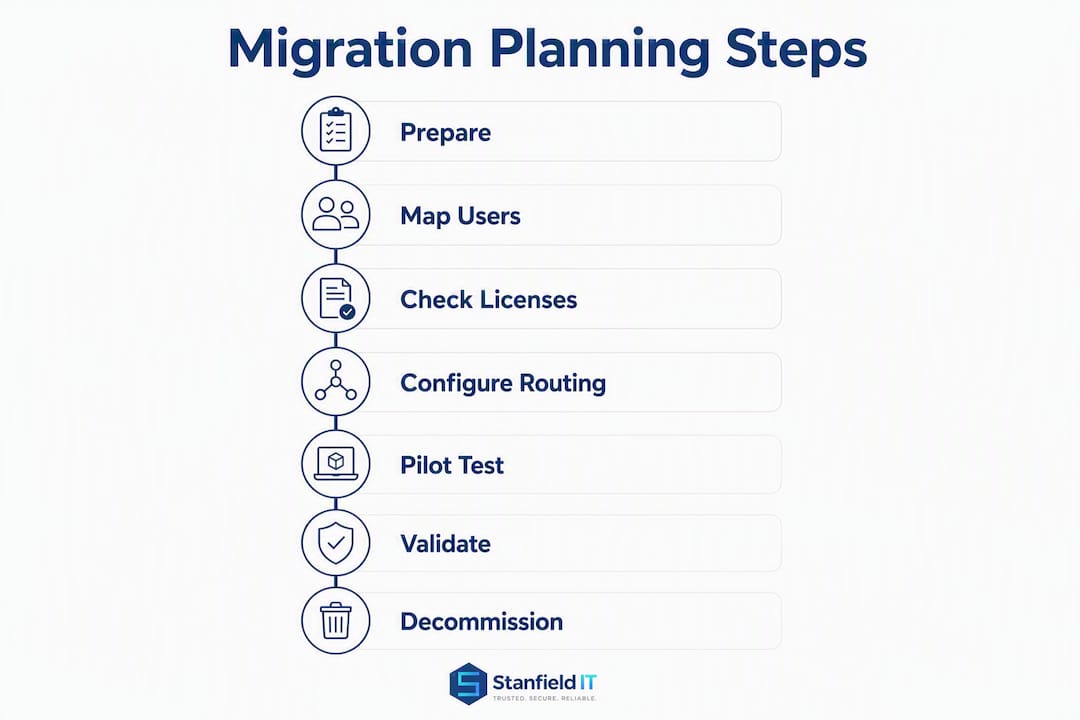
- Inventory all workloads: mailboxes, OneDrive, SharePoint sites, Teams, Power Platform environments, and Dynamics 365.
- Build your identity mapping file: match source UPNs to target UPNs for every user, shared mailbox, and resource account.
- Plan your domain transfer: identify temporary routing domains and map your DNS cutover sequence.
- Audit licences in the target tenant: confirm you have sufficient Microsoft 365 licences before migration begins, including any Migration Orchestrator prerequisites.
- Select your pilot group: choose a representative set of 10–20 users across business units and mailbox sizes.
One risk notice up front: data fidelity gaps, duplicate licensing costs during coexistence, and Power Platform connector breakage are the three issues most likely to stall or derail a project. Microsoft’s tenant migration planning guidance and the Power Platform move procedure are your authoritative references for procedural commands and prerequisites.
Table of Contents
- When does your organisation need a tenant-to-tenant migration?
- How do you choose the right migration approach?
- What do you need to plan before any data moves?
- What does the step-by-step migration process look like?
- What are the per-workload requirements and gotchas?
- Which tools should you use for a tenant-to-tenant migration?
- How do you validate your pilot and manage cutover?
- What are the biggest risks and how do you manage them?
- What are the special steps for Power Platform and Dynamics 365?
- Key takeaways
- What the project plans miss and what actually matters
- Stanfieldit’s managed migration service for Australian organisations
- Useful sources
When does your organisation need a tenant-to-tenant migration?
Understanding your business trigger matters because it shapes scope, timeline, and risk tolerance from day one. The most common scenarios are:
- Mergers and acquisitions: a parent company acquires a business running its own Microsoft 365 tenant and needs to consolidate users, email, and collaboration tools into a single environment.
- Divestitures and carve-outs: a business unit is sold or spun off, requiring its data and identities to be separated into a new standalone tenant.
- Serial acquisition consolidation: an organisation that has grown through multiple acquisitions ends up with several tenants and needs to rationalise them into one.
- Rebranding or corporate restructure: a company changes its legal name or domain and needs a clean tenant to reflect the new identity.
- Regulatory separation: compliance or data sovereignty requirements mandate that certain business units operate in isolated tenants, or conversely, that previously separated tenants be merged to meet audit requirements.
Scope varies enormously between scenarios. A small acquisition might involve 50 mailboxes, no SharePoint customisation, and no Power Platform footprint. That kind of project can be completed in a few weeks with native cross-tenant tools and a small project team. An enterprise consolidation involving hundreds of SharePoint site collections, thousands of OneDrive accounts, multiple Teams environments, and active Power Platform or Dynamics 365 deployments is a different undertaking entirely. Practitioner experience suggests complex migrations commonly run 8–16 weeks from assessment to decommission.
The key scope drivers to assess early are:
- Total user count and mailbox sizes (including archive mailboxes and litigation holds).
- SharePoint and OneDrive data volume, site collection count, and customisation depth.
- Teams complexity: number of teams, channels, apps, and connectors.
- Power Platform and Dynamics 365 presence, including the number of environments and active flows.
- Regulatory obligations, including Australian Privacy Principles (APPs) and any contractual data residency requirements.
How do you choose the right migration approach?
Microsoft documents three high-level approaches for tenant-to-tenant migrations, and the right choice depends on your scale, workload mix, internal skills, and risk tolerance.
Multi-workload orchestrated migration uses Migration Orchestrator to coordinate Exchange Online, OneDrive, SharePoint, and Teams migrations in sequenced batches. It automates dependency ordering and provides a single pane of glass for progress monitoring. This is the preferred path for organisations migrating multiple workloads simultaneously where internal Microsoft 365 admin skills are strong.

Per-workload cross-tenant tools give granular control over individual workloads. You use the cross-tenant mailbox migration API for Exchange, cross-tenant OneDrive and SharePoint moves, and separate tooling for Teams content. This suits smaller migrations or situations where you need to phase workloads independently.
Partner and certified third-party tools are the practical choice when your estate is large, your SharePoint customisation is deep, or you need advanced reporting, rollback capabilities, and managed execution. Microsoft explicitly recommends this path when internal skills are limited.
| Approach | Best for | Supported workloads | Automation level | Complexity | Licence model | Rollback capability |
|---|---|---|---|---|---|---|
| Migration Orchestrator | Multi-workload, medium-to-large orgs with strong internal skills | Exchange, OneDrive, SharePoint, Teams | High | Medium-high; requires prerequisites | Included with qualifying M365 licences | Batch retry; limited full rollback |
| Per-workload cross-tenant tools | Smaller orgs or phased single-workload moves | Exchange, OneDrive, SharePoint (separately) | Medium | Lower per workload | Included with M365 | Per-workload retry |
| Certified partner / third-party tools | Large, complex estates; limited internal skills; advanced reporting needed | All workloads including Power Platform | High; managed execution | High; partner manages complexity | Vendor licensing; project-based fees | Advanced rollback and retry features |
Decision criteria to guide your choice:
- Scale: more than 500 users or large SharePoint estates point toward Migration Orchestrator or a partner tool.
- Teams complexity: deep Teams customisation with apps and connectors often requires specialist tooling.
- In-house skills: if your team has not run a cross-tenant migration before, a partner reduces execution risk significantly.
- Reporting and audit needs: regulated industries in Australia need detailed migration logs for compliance purposes.
- Timeline and downtime tolerance: orchestrated and partner-led approaches allow tighter cutover windows through incremental sync.
Pro Tip: Default to Migration Orchestrator when you have qualifying Microsoft 365 licences, a strong internal admin team, and a workload mix of Exchange, OneDrive, SharePoint, and Teams. Move to a certified partner tool when your SharePoint estate has significant customisation, your Power Platform footprint is large, or your team has not run this type of project before.
What do you need to plan before any data moves?
Pre-migration planning is where most projects either succeed or stall. The checklist below covers the areas that most commonly cause cutover delays.
Identity strategy
Your identity mapping file is the foundation of the entire migration. For each source user, you need a confirmed target UPN, a matched licence in the destination tenant, and a validated email address. Decisions to make:
- Keep or change UPNs: keeping UPNs simplifies user experience but requires careful domain management. Changing UPNs requires user communication and desktop client reconfiguration.
- Guest accounts vs. side-by-side: during coexistence, source users may appear as guests in the target tenant. Plan how long this state will persist and what access guests will have.
- Azure AD / Entra ID considerations: cross-tenant relationships must be established in both tenants before migration begins. Confirm that Entra ID Connect sync is paused or reconfigured where applicable.
Domain transfer plan
You cannot move a domain while it is active in the source tenant. The sequence is: add a temporary routing domain to the source tenant, remove the primary domain from source, verify it in the target tenant, then update DNS. DNS TTL management matters here. Lower TTLs to 300 seconds at least 48 hours before cutover to reduce propagation delays.

Licence and cost checks
Duplicate licensing during coexistence is a real cost risk. Users need licences in both tenants while mail routing is split. Build a licence reconciliation spreadsheet before migration starts and set a clear coexistence end date to cap that cost. Migration Orchestrator has specific licence prerequisites; confirm these against your current agreement before committing to that path.
Coexistence and mail routing
During migration, mail flow between source and target tenants must work reliably. Configure cross-tenant mail routing, calendar free/busy sharing, and Teams federation so users in both tenants can collaborate. The user experience during coexistence is imperfect by design; set expectations with your user community early.
Workload dependency matrix
The order in which you migrate workloads matters. Exchange Online mailboxes must be migrated before Teams chat and channel content can be moved, because Teams content is tied to Exchange. OneDrive and SharePoint migrations can run in parallel but should be sequenced to match user batches. Power Platform environments require a separate formal move request and must be handled after core Microsoft 365 workloads are stable.
Timeline estimation and pilot sizing
For most Australian SME migrations, a phased approach across 8–12 weeks is realistic for a mid-size organisation. Pilot batches should represent a cross-section of the organisation: include at least one executive mailbox, one shared mailbox, one heavy SharePoint user, and one Teams-heavy user. Limit pilot batches to 10–20 users so issues surface before they affect the broader population.
Pre-migration communications checklist
- Send an initial announcement to all affected users at least two weeks before pilot begins.
- Publish a FAQ covering what will change, what will stay the same, and where to get help.
- Brief the help desk on expected call types and escalation paths.
- Schedule training sessions for any workflow changes (new UPNs, Outlook reconfiguration, Teams re-authentication).
- Confirm support window hours for cutover weekend.
Pro Tip: Run a mailbox hold audit before migration. Mailboxes under litigation hold or In-Place Hold require special handling and can block migration if not identified early. Check shared mailbox ownership too — orphaned shared mailboxes without a valid owner will fail to migrate.
What does the step-by-step migration process look like?
A structured runbook keeps the project on track and gives every team member clear ownership. The phases below map to the standard Microsoft 365 migration planning framework.
Phase 1: assess
- Run a full inventory of all Microsoft 365 workloads, data volumes, and user counts.
- Use discovery tools (Microsoft 365 Admin Centre reports, PowerShell, or third-party assessment tools) to capture mailbox sizes, SharePoint site collections, OneDrive usage, and Teams membership.
- Score complexity: flag mailboxes over 50 GB, SharePoint sites with custom workflows, Teams with external apps, and any Power Platform environments.
- Build a risk register covering data fidelity risks, licence gaps, and compliance obligations.
Phase 2: prepare
- Complete the identity mapping file and validate it against both tenant directories
- Set up Migration Orchestrator or your chosen tool and complete prerequisite checks
Phase 3: pilot
- Select your pilot batch (10–20 representative users).
- Run the initial sync and collect metrics: sync throughput, item error rates, authentication failures, and end-user sign-in success.
- Test key business processes: mail flow, shared calendar access, Teams calls, and SharePoint file access.
- Document all errors and resolve before proceeding to full migration.
- Obtain sign-off from pilot users and the project sponsor before scaling up.
Phase 4: migrate
- Divide remaining users into batches sized by mailbox volume and business criticality.
- Run incremental (delta) syncs to keep source and target data aligned during migration.
- Monitor migration dashboards continuously; set alerts for error rate thresholds.
- Log all batch completions, error counts, and remediation actions.
Phase 5: cutover
- Run a final delta sync immediately before cutover.
- Switch mail routing from source to target tenant.
- Update DNS records and confirm propagation.
- Validate user sign-in in the target tenant for all migrated users.
- Activate help desk support window and monitor escalation queue.
Phase 6: validate and decommission
- Spot-check a representative sample of migrated mailboxes, SharePoint sites, and OneDrive accounts.
- Verify data integrity: item counts, folder structures, permissions, and metadata.
- Reconfigure desktop clients (Outlook, Teams, OneDrive sync client) for all users.
- Keep source tenant objects in a read-only holding state for a minimum of 30 days post-cutover to allow rapid rollback if critical issues surface.
- Decommission source objects after the holding period and confirm licence removal.
Practitioner guidance consistently supports running multiple dry runs with production-like data before committing to a live cutover window. A dry run exposes sequencing issues and data fidelity problems that only appear at scale.
What are the per-workload requirements and gotchas?
Each Microsoft 365 workload has its own migration mechanics, and the failure modes differ between them.
Exchange Online
Cross-tenant mailbox migration uses the native migration API or Migration Orchestrator. Key considerations:
- Archive mailboxes must be migrated separately from primary mailboxes; confirm archive licences exist in the target tenant.
- Public folders require a dedicated migration path and are not handled by the standard cross-tenant mailbox API.
- Mail routing during coexistence relies on cross-tenant connectors; test these thoroughly before pilot.
- Litigation holds and In-Place Holds must be replicated in the target tenant before migration completes.
OneDrive and SharePoint
- User mapping must be validated before OneDrive moves; an incorrect mapping results in data landing in the wrong account.
- Permissions on SharePoint sites are not always replicated faithfully, particularly for external sharing links and unique item-level permissions.
- Version history is preserved in most tool-based migrations but verify this explicitly in your pilot.
- Large files (over 15 GB) and files with special characters in their names are common failure points; run a pre-migration scan to identify them.
- Sequence SharePoint site migrations to match user batches so users and their data arrive in the target tenant together.
Teams
- Teams chat and channel content migration depends on Exchange Online mailboxes being migrated first.
- Chat history migration has limitations; not all third-party tools preserve full chat fidelity.
- Team membership must be remapped to target tenant identities after migration.
- Apps, bots, and connectors in Teams channels will need re-authentication in the target tenant.
- Meeting recordings stored in OneDrive or SharePoint migrate with those workloads; calendar items require separate handling.
PSTs and legacy archives
- PST ingestion into the target tenant requires a clear ownership mapping file.
- Timestamps and metadata must be preserved; verify this in your tool’s settings before ingestion.
- Legal hold requirements apply to PST content; confirm with your legal team before ingestion begins.
Power Platform and Dynamics 365
The Power Platform tenant-to-tenant move is a formal process separate from the Microsoft 365 workload migration. After the move, all connections and connectors must be reconfigured manually. Security groups are not copied and require post-move remediation. See the dedicated section below for the full procedure.
| Workload | Common gotcha | Verification check |
|---|---|---|
| Exchange Online | Archive mailboxes and holds missed | Confirm archive licence and hold status pre-migration |
| OneDrive | User mapping errors cause data misplacement | Validate mapping file against both directories |
| SharePoint | Unique item permissions not replicated | Run permissions report post-migration |
| Teams | Chat history fidelity varies by tool | Test chat history in pilot with your chosen tool |
| PSTs | Timestamps corrupted during ingestion | Verify timestamp preservation in tool settings |
| Power Platform | Connectors break post-move | Reconfigure all connections after move completes |
Pro Tip: For SharePoint migrations, run a pre-migration content scan using the SharePoint Migration Assessment Tool (SMAT) to surface incompatible file names, large files, and InfoPath forms before you start. Fixing these in source is far faster than remediating them in the target tenant.
Which tools should you use for a tenant-to-tenant migration?
Microsoft provides native tooling that covers most scenarios, but the right choice depends on your scale and complexity.
Microsoft native capabilities
Migration Orchestrator coordinates multi-workload migrations across Exchange, OneDrive, SharePoint, and Teams in sequenced batches. It is the preferred path for organisations with qualifying Microsoft 365 licences and a capable internal admin team. For single-workload control, the cross-tenant mailbox migration API (Exchange), cross-tenant OneDrive move, and cross-tenant SharePoint migration provide granular options.
Microsoft recommends engaging a partner when migrations involve more than 500 users, large SharePoint estates, or workloads that require advanced reporting and rollback features.
When to use third-party tools
Specialist tools add value in three situations: your SharePoint estate has deep customisation, your Teams environment has complex app dependencies, or you need detailed migration reporting for compliance or audit purposes. Third-party tools also typically offer more granular rollback and retry capabilities than native tooling.
CoreView is a Microsoft 365 governance and management platform that includes migration and tenant management capabilities. It is well suited to organisations that need centralised visibility across a complex Microsoft 365 estate during and after migration. CoreView’s strength is governance reporting and policy enforcement, which makes it useful for organisations with compliance obligations under the Australian Privacy Principles.
ShareGate is a specialist SharePoint and Microsoft 365 migration tool with a strong track record for SharePoint and Teams content migrations. It provides a GUI-driven migration experience, detailed reporting, and pre-migration assessment capabilities. ShareGate is a practical choice when your SharePoint estate is large or heavily customised and your team prefers a managed, visual workflow over PowerShell-heavy approaches.
When evaluating any tool or partner, check these criteria with a thorough Multi-LLM Audit to ensure compatibility and reliability.
- Supported workloads: does it cover all workloads in your scope, including Power Platform?
- Automation level: can it run unattended batch migrations overnight?
- Reporting: does it produce audit-ready logs suitable for Australian Privacy Principles compliance?
- Retry and rollback: what happens when a batch fails mid-migration?
- Support options: is local Australian support available, and what are the SLAs?
- Pricing model: is it per-user, per-migration, or subscription-based?
For Australian organisations, data residency matters. Confirm that any third-party tool processes and stores migration data within Australia or in a jurisdiction that meets your contractual and APP obligations. Review vendor contracts carefully; some tools route migration traffic through US or European data centres by default.
Choosing the right Microsoft 365 consultant or managed services partner can significantly reduce execution risk, particularly for first-time migrations or organisations without a dedicated Microsoft 365 admin team.
How do you validate your pilot and manage cutover?
Pilot validation is the gate between a controlled test and a full production migration. Do not scale up until the pilot meets every acceptance criterion.
Pilot metrics to collect
- Sync throughput: items migrated per hour, compared against your tool’s published benchmarks.
- Item error rate: target below 1% for mailbox items; investigate any SharePoint errors individually.
- Authentication failures: any failure here blocks user access and must be resolved before scale-up.
- End-user sign-in success: confirm 100% of pilot users can sign in to the target tenant within 30 minutes of cutover.
- Key business process tests: send and receive mail, access shared calendars, join a Teams call, open a SharePoint document, and run a Power Automate flow.
Acceptance criteria for safe scale-up
- Item error rate is below 1% across all workloads in the pilot batch.
- All pilot users can sign in and access their data within the agreed cutover window.
- Mail flow between source and target tenants is confirmed bidirectional.
- No authentication failures remain unresolved.
- Help desk has received no critical escalations from pilot users after 48 hours.
Cutover validation steps
- Spot-check at least 10% of migrated mailboxes for folder structure, item counts, and sent items.
- Verify SharePoint file counts and spot-check permissions on at least five site collections.
- Confirm Teams membership, channel structure, and tab functionality for at least three teams.
- Test at least one Power Automate flow end-to-end in the target tenant.
- Confirm DNS propagation is complete and mail is routing exclusively to the target tenant.
Rollback checklist and triggers
Initiate a rollback if any of the following occur:
- More than 5% of migrated users cannot sign in after cutover.
- Critical business processes (mail flow, Teams calls, key Power Automate flows) are non-functional after two hours of remediation.
- Data integrity issues are confirmed in more than 1% of spot-checked items.
- A compliance or legal hold breach is identified post-cutover.
Rollback steps: revert DNS to source tenant, restore mail routing to source connectors, communicate to users, and engage your tool vendor or Microsoft support immediately. Keeping source objects in read-only state for 30 days post-cutover makes rollback practical rather than theoretical.
What are the biggest risks and how do you manage them?
Tenant-to-tenant migrations carry real risk across data integrity, security, compliance, and cost. The most impactful risks and their mitigations are:
- Data loss: caused by incomplete user mapping, failed batch retries, or premature decommissioning of source objects. Mitigate by validating the mapping file before migration, running incremental syncs, and maintaining a 30-day source holding period.
- Permission drift: SharePoint unique permissions and external sharing links frequently break during migration. Run a permissions audit before and after migration; remediate broken links proactively.
- Broken shared links: OneDrive and SharePoint shared links do not survive a tenant move. Communicate this to users before cutover and provide guidance on resharing.
- Lost metadata: some tools do not preserve all metadata fields. Verify metadata fidelity in your pilot before committing to full migration.
- Licence overspend: duplicate licences during coexistence add cost. Set a firm coexistence end date and track licence counts weekly.
- Tenant relationship misconfigurations: incorrect cross-tenant organisational relationships block migration jobs silently. Validate relationships with PowerShell before starting any batch.
Compliance and data residency in Australia
Australian organisations must consider the Australian Privacy Principles when moving personal data between tenants. Key obligations include ensuring data is not transferred to a jurisdiction with inadequate privacy protections without appropriate safeguards, and that data handling agreements with vendors are in place. If your organisation operates in healthcare, financial services, or government, additional sector-specific obligations may apply. Review your vendor contracts and Microsoft’s data processing terms against your APP obligations before migration begins.
Security best practices
- Use dedicated migration service accounts with the minimum permissions required; do not use global admin accounts for migration jobs.
- Enable audit logging in both tenants before migration starts and retain logs for at least 90 days.
- Review your Data Loss Prevention (DLP) policies in the target tenant before cutover; policies do not migrate automatically.
- Confirm Conditional Access policies are configured in the target tenant before users are switched over.
- For endpoint security during migration, review your controls carefully. A comparison of Microsoft Defender vs CrowdStrike can help you decide which endpoint protection approach suits your target tenant configuration.
Pro Tip: Enable Unified Audit Log in the target tenant before migration begins, not after. Audit events from the migration process itself are valuable for compliance reporting and post-migration forensics. Turning it on retroactively means you lose that data permanently.
A qualitative risk register with assigned owners and weekly review cadence is more useful than a static risk list. Assign a named owner to each risk item and review status at every project checkpoint.
What are the special steps for Power Platform and Dynamics 365?
Power Platform and Dynamics 365 environments do not migrate automatically with your Microsoft 365 workloads. They require a formal tenant-to-tenant move process initiated by the source tenant admin.
The move sequence
- Prepare: the source admin submits a migration request through the Power Platform Admin Centre, uploads the user-mapping file, and runs the prepare command. Microsoft validates the mapping file; failed validations indicate errors in the file that must be corrected before proceeding.
- Migrate: once the prepare step succeeds, the source admin runs the migrate command. Migration progress is monitorable via the
TenantToTenant-GetMigrationStatuscommand. - Validate: after migration completes, run validation checks to confirm environment data and configuration have transferred correctly.
A critical procedural constraint: you have a seven-day window to complete the migration after the prepare step succeeds. If migration is not completed within that window, the process must be restarted from the beginning.
Post-move remediation tasks
After the Power Platform environment moves to the target tenant, these tasks are mandatory:
- Reconfigure all connections and reauthenticate every connector; connections do not transfer.
- Re-enable all Power Automate flows; flows are disabled during the move.
- Update HTTP trigger URLs for any flows that use them, as these change post-move.
- Re-provision managed environments and update security group assignments; security groups are not copied.
- Update any custom connectors with new authentication credentials.
- Retest all business-critical flows end-to-end before declaring the environment stable.
Australia-specific notes
Confirm that the destination tenant has the correct Power Platform licence entitlements before submitting the migration request. Licence mismatches in the destination tenant will cause the migration to fail. For Australian organisations with data residency requirements, verify that the Power Platform environment region is set to Australia in the target tenant before the move begins. Changing the region after migration is not straightforward and may require Microsoft support involvement.
Key takeaways
A successful tenant-to-tenant migration requires a validated identity mapping file, a clear workload dependency sequence, and a confirmed pilot before any production data moves.
| Point | Details |
|---|---|
| Start with identity mapping | Build and validate your user mapping file before any migration tool is configured. |
| Sequence workloads correctly | Migrate Exchange Online before Teams content; handle Power Platform separately after core workloads are stable. |
| Pilot before full migration | Run a 10–20 user pilot and meet all acceptance criteria before scaling to production batches. |
| Plan for Australian compliance | Review Australian Privacy Principles obligations and vendor data residency terms before migration begins. |
| Stanfieldit manages the full process | Stanfieldit provides migration planning, pilot execution, managed cutover, and post-migration support for Australian organisations. |
What the project plans miss and what actually matters
There is a gap between how tenant-to-tenant migrations are described in vendor documentation and how they actually run in practice. Most guides focus on the technical sequence and treat the identity mapping file as a straightforward task. In reality, the mapping file is where most projects lose time. Source directories are rarely clean. Users have multiple aliases, shared mailboxes have no clear owner, and service accounts were created years ago by people who have since left. Getting the mapping file right takes longer than most project plans allow.
The second thing that tends to catch teams off guard is Power Platform. Organisations often do not know how many Power Automate flows and custom connectors they have until the migration is underway. A flow that automates a business-critical approval process, built by someone in finance two years ago, will break silently after the tenant move unless it is identified and reconfigured. A pre-migration Power Platform inventory is not optional for any organisation that has been using Microsoft 365 for more than two years.
For Australian SMEs specifically, the coexistence period is often underestimated. Running two tenants simultaneously, even for a few weeks, creates real support overhead. Users get confused about which tenant to sign in to, shared calendar access breaks in ways that are hard to explain, and the help desk gets calls that are difficult to triage without a clear coexistence guide. Investing in user communications and a simple one-page guide for the help desk pays back quickly.
The organisations that run the smoothest migrations are the ones that treat the pilot as a genuine test, not a formality. A pilot that surfaces three issues and resolves them before full migration is a success. A pilot that is rushed through to hit a deadline and passes on paper is a liability.
Stanfieldit’s managed migration service for Australian organisations
Tenant-to-tenant migrations are complex projects with real consequences for data integrity, user productivity, and compliance. Stanfieldit provides end-to-end managed migration services for Australian businesses, covering migration assessment, identity mapping, pilot execution, managed cutover, and post-migration optimisation.

A Stanfieldit engagement starts with a fixed-scope assessment that maps your workloads, identifies risks, and produces a migration plan your team can act on. From there, we manage the pilot, execute production batches, and support your team through cutover and the post-migration stabilisation period. Our cloud migration services cover Microsoft 365 tenant migrations, Google Workspace transitions, and broader cloud consolidation projects for Australian professional services and healthcare organisations.
If you are planning a tenant migration and want a clear assessment of your scope, risks, and timeline, contact Stanfieldit for a migration assessment at stanfieldit.com.
Useful sources
The following authoritative references cover the procedural commands, prerequisites, and tool-specific guidance referenced throughout this article. Microsoft Learn pages are the primary source for procedural steps; vendor sites are useful for tooling comparisons and feature details.
- Microsoft 365 tenant-to-tenant migrations overview: the starting point for understanding native migration approaches, including Migration Orchestrator and per-workload tools. Read this before selecting your approach.
- Plan a Microsoft 365 tenant-to-tenant migration: Microsoft’s planning checklist covering identity mapping, coexistence, licensing, and workload dependencies. Use this to build your pre-migration checklist.
- Migration Orchestrator overview: detailed prerequisites, licence requirements, and setup steps for Migration Orchestrator. Check this before committing to the orchestrated approach.
- Cross-tenant mailbox migration: covers the native cross-tenant mailbox migration API, including the public preview of native cross-tenant mailbox migration. Useful for Exchange-specific planning and PowerShell commands.
- Power Platform tenant-to-tenant move: the authoritative procedural reference for Power Platform and Dynamics 365 environment moves, including the prepare/migrate/validate command sequence, the seven-day completion window, and post-move remediation tasks.
- Stanfieldit: Google Workspace to Office 365 migration: practical runbook design, change management, and post-migration optimisation guidance from Stanfieldit’s own migration experience, applicable to Microsoft 365 tenant migrations.
Prioritise Microsoft Learn pages for procedural commands and prerequisites. Use vendor documentation for ShareGate and CoreView to compare tooling features and supported workloads against your specific requirements.