Can Microsoft 365 Copilot show staff files they shouldn’t see? It can make files easier to find when staff already have access through an overly broad group, a direct grant or a sharing link. Copilot respects Microsoft 365 permissions, so a rollout can bring old access decisions to light quickly.
A SharePoint permissions audit shows who can access sensitive files, how they got that access and which permissions need fixing before you expand a Copilot pilot. For a business holding client records, payroll data or board papers, start with the SharePoint sites, Teams-connected libraries and relevant OneDrive locations where unintended access would have the most impact.
Talk to Stanfield IT about a SharePoint permissions review if you have a pilot planned and need to know what to fix first.
What does a SharePoint permissions audit check?
- Site and group membership. Review site owners, members and visitors, Microsoft 365 and Entra group membership, and broad principals such as Everyone except external users.
- Direct access and broken inheritance. Sample sensitive libraries, folders and files. A restricted site can still contain items with separate permissions that need review.
- Sharing links. Identify active Anyone and organisation-wide links on sensitive content. Check whether a named-recipient link or a group with a designated owner would support the same workflow.
- Guest access and ownership. Confirm who sponsors each guest relationship, whether access is still needed, and who can approve changes on each sensitive site.
- Teams and OneDrive. Include the SharePoint sites behind private and shared Teams channels where relevant, and check sensitive files shared from individual OneDrive accounts.
Where your licensing supports them, Microsoft’s SharePoint data access governance reports can help prioritise sites for review. Confirm individual findings with the business owner and check the actual access path before making changes. Microsoft’s Copilot rollout guidance explains the available reporting and controls.
Three SharePoint permissions audit findings and who should approve the fix
These examples show what a SharePoint permissions audit should tell a decision-maker.
| Example finding | Proposed fix | Business approver |
|---|---|---|
| A payroll library inherits access from a site with broad staff membership. | Move the records to a restricted location or scope the library to an approved payroll group. Check that payroll staff retain access. | Payroll or HR owner |
| A former contractor still has access to a client project site. | Confirm the engagement has ended, then revoke that site access and associated direct grants. Check for other active engagements before changing tenant-wide guest access. | Client engagement owner |
| A sensitive finance workbook has an organisation-wide sharing link. | Revoke the broad link and provide access to the approved recipients. Review recurring reporting workflows that relied on the old link. | Finance owner |
What should be fixed before the Copilot pilot?
Prioritise confirmed unintended access to sensitive information. Record the site or file, the people who can reach it, the permission or link that grants the access, the owner’s decision, and the evidence that the change worked. Keep the remaining items in a remediation register with owners and due dates.
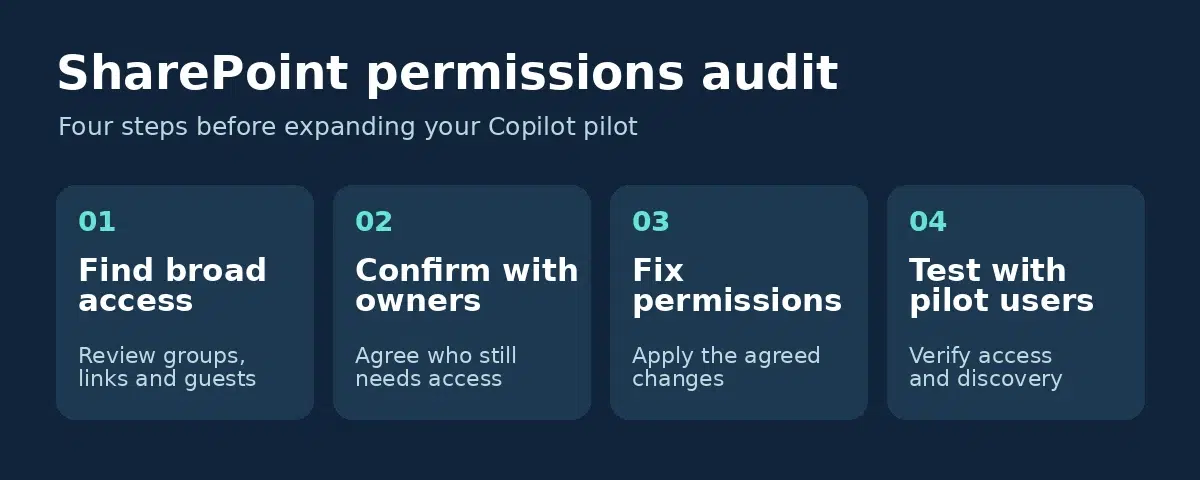
Test with representative pilot users. Confirm that authorised users can still find and open the material they need and that users outside the approved group can no longer open the restricted content. Allow for search indexing to catch up, then check discovery through Microsoft Search and Copilot where relevant. Keep a record of the test results and obtain sign-off from the relevant business owners.
Microsoft offers controls such as Restricted Content Discovery for particular scenarios. Treat discovery settings as a separate decision from who should retain direct access to the files. See Microsoft’s SharePoint Advanced Management overview for feature and licensing details.
What should a paid SharePoint permissions review deliver?
Ask for a list of the sites and libraries reviewed, access findings ranked by business impact, nominated approvers, and a remediation plan that explains how changes will be verified. Ask whether the proposal includes implementing changes and retesting or covers assessment only.
Scope depends on how many sites and sensitive libraries you need to review, how much external sharing you use, and whether site ownership is documented. If you need to agree a scope quickly, bring your proposed pilot date, pilot groups and the names of your highest-risk sites to the first conversation.
Frequently asked questions
Can we run a SharePoint permissions audit before buying Copilot licences?
Yes. You can review site ownership, membership and sharing before buying licences. Advanced tenant-wide reports and controls depend on your Microsoft licensing.
Should we include Teams and OneDrive?
Yes, where staff use them for sensitive work. Teams channel files live in SharePoint, and staff can share work files from OneDrive. Reviewing the main SharePoint sites alone can miss those locations.
What if Copilot is already live?
Start with high-impact sites such as payroll, HR, finance and client records. Fix confirmed oversharing, test with representative users and review the findings before expanding access to more staff.
Book a SharePoint permissions review
Stanfield IT helps Sydney businesses identify oversharing, agree changes with business owners and verify permissions ahead of a Copilot rollout. Discuss a SharePoint permissions review with our Microsoft 365 team.
For the rest of the rollout, see our Copilot readiness checklist and AI governance and secure adoption services.