


For most Australian organisations, the right starting point is Microsoft’s native automated batch migration in the Exchange Admin Center for mail, calendar, and contacts, combined with Migration Manager or a dedicated third-party tool for Google Drive and Shared Drives. That split covers the majority of tenants cleanly, at the lowest cost and risk.
When to use each option:
- Native Exchange Admin Center (EAC) automated migration: Mail, calendar, and contacts for most tenants. Best for organisations with straightforward mailbox needs and limited Drive complexity.
- IMAP migration: Mail only, for very small tenants or consumer Gmail accounts. No calendars or contacts.
- Migration Manager (SharePoint Admin Centre): Google Drive and Shared Drives. Required when native mailbox migration does not cover file workloads.
- Third-party all-in-one tool (e.g. BitTitan MigrationWiz): When you need a single pane covering mail, Drive, Shared Drives, and delta sync with detailed reporting.
- Managed service provider (MSP): When internal skills, time, or change management capacity are the constraint, or when compliance and data residency governance require a structured engagement.
Quick next steps before anything else:
- Verify your domain in Microsoft 365 and add the required TXT record.
- Provision target mailboxes and assign Exchange Online licences.
- Run a pilot batch of a small group of users before touching production data.
- Plan your Drive migration separately — it almost always takes longer than mail.
Table of Contents
- Which migration method fits your organisation?
- What data migrates automatically and what needs separate handling?
- Essential prerequisites before you start any migration
- Step-by-step migration checklist: plan, pilot, run batches, cutover, validate
- Common migration limitations and practical fixes
- Tools and service options: what fits your migration?
- Typical timelines and cost factors for Australian organisations
- Should you run the migration in-house or hire an MSP?
- Australia-specific considerations: privacy, data residency, and the Stanfieldit approach
- Key takeaways
- What I’ve seen go wrong in Google Workspace migrations
- Stanfieldit migration services: what’s included and how to start
- Useful sources and further reading
Which migration method fits your organisation?
Choosing the wrong method costs time. The table below maps each approach to the workloads it covers, the complexity it handles, and the cost shape you should expect.
| Method | Workloads covered | Complexity / tenant size | Admin effort | Typical cost shape |
|---|---|---|---|---|
| EAC automated batch | Mail, calendar, contacts | Small to large | Moderate | Included in M365 licence |
| IMAP | Mail only | Very small / consumer | Low | Included in M365 licence |
| Migration Manager | Drive, Shared Drives | Small to large | Moderate | Included in M365 licence |
| Third-party tool (e.g. MigrationWiz) | Mail + Drive + Shared Drives + optional Teams | Any size, complex tenants | Low to moderate | Per-user or project fee |
| MSP engagement | All workloads + governance | Any size, high-risk or compliance-heavy | Low (for internal team) | Project or retainer fee |
Decision checklist for IT teams:
- Fewer than 50 users with minimal Drive data? Native EAC plus Migration Manager is usually sufficient.
- 50–500 users with significant Shared Drive volume or tight cutover windows? A third-party tool adds delta sync and reporting that native tools lack.
- Over 500 users, complex permissions, or regulated data? Engage an MSP with a structured pilot and governance framework.
- No in-house migration experience? The risk of a DIY approach scales with tenant size. An MSP earns its cost quickly when a failed cutover means days of lost productivity.
Microsoft recommends the automated batch migration over manual batch migration for most organisations, because it keeps both environments active during staged rollout and reduces the risk of mail flow gaps. For small teams, a quick IMAP migration gets mail across in hours. For anything involving Drive or Shared Drives at scale, plan that workload as a separate project running in parallel.
What data migrates automatically and what needs separate handling?
Native EAC migration covers three workloads cleanly: Gmail to Exchange Online, Google Calendar to Outlook Calendar, and Google Contacts to Outlook Contacts. Everything else requires Migration Manager or a third-party tool.
Workload mapping:
- Gmail → Exchange Online: Migrates messages, folders, and read/unread status. Gmail labels become folders in Outlook; a single email with multiple labels creates duplicate folder copies.
- Google Calendar → Outlook Calendar: Events, recurring meetings, and attendees migrate. Shared calendar colour coding does not carry across.
- Google Contacts → Outlook Contacts: Core contact fields migrate. Some extended or custom fields may not map cleanly.
- Google Drive → OneDrive: Requires Migration Manager or a third-party tool. Google-native formats (Docs, Sheets, Slides) convert to Office formats during transfer, which can affect complex formatting.
- Shared Drives → SharePoint: Migration Manager or a third-party tool is required for full metadata and permission fidelity. Native mailbox migration does not touch Shared Drives.
- Google Chat / Spaces: No native migration path. Third-party tools offer partial coverage; most organisations accept data loss here or archive Chat history manually before cutover.
- Google Groups / Sites / Vault: Manual or tooled approaches only. Vault data requires export and reimport; Groups require recreation in Microsoft 365.
Known limits and fidelity notes:
| Workload | Native tool limit | Third-party tool improvement |
|---|---|---|
| Message size | 35 MB per item (Exchange Online limit) | Same limit applies |
| Gmail labels | Converted to folders; duplicates if multi-labelled | Some tools deduplicate |
| Drive file conversion | Google formats convert to Office; fidelity varies | Pre-migration conversion checks available |
| Shared Drive permissions | Not preserved by native mail migration | Migration Manager or tool required |
| API throttling | Google API quotas can slow large migrations | Tools manage throttling with retry logic |
| Calendar colours | Not migrated | Not migrated by any tool |
Pro Tip: Run a sample conversion of 50–100 Drive files before committing to a full migration. Complex Google Sheets with macros or Apps Script will not convert cleanly, and identifying them early saves significant rework at cutover.

Essential prerequisites before you start any migration
Skipping prerequisites is the single most common cause of failed migrations. Complete every item on this list before running a single batch.
Domain and DNS tasks:
- Verify domain ownership in Microsoft 365 by adding the TXT record at your DNS registrar.
- Create target Microsoft 365 mailboxes for every user being migrated.
- Assign Exchange Online licences — each user must have an active licence before mail can land in their mailbox.
- Lower your MX record TTL to 300 seconds (5 minutes) at least 48 hours before planned cutover. This reduces DNS propagation delay when you switch mail flow.
- Plan your MX cutover date and communicate it to the team before migration begins.
Google Workspace side tasks:
- Create a Google Cloud project and service account (for automated EAC migration), or install the Microsoft migration app in your Google Workspace admin console.
- Enable the Gmail, Google Calendar, and Google Contacts APIs in the Google Cloud project.
- Configure domain-wide delegation for the service account so it can access all user mailboxes.
- Download the JSON key file from the service account — you will import this into the EAC migration endpoint. The EAC automates several prerequisite tasks when you use the automated path, but the JSON key import is still a manual step.
- For IMAP migration: reset user passwords or generate app passwords for each account being migrated.
Microsoft 365 side tasks:
- Create a migration endpoint in the Exchange Admin Center using the service account JSON key.
- Set endpoint concurrency values. The EAC sets default values for maximum concurrent migrations and incremental syncs; adjust these based on your Google API quota and network capacity.
- Prepare your CSV file with at minimum the
EmailAddresscolumn (required) and optionallyUsernameif Gmail addresses differ from Microsoft 365 addresses. - Confirm that the migration admin account has Global Admin or Exchange Admin rights in Microsoft 365.
Who to involve before you start: Security (credential handling and service account permissions), network (bandwidth planning for large Drive volumes), and legal or compliance (data handling obligations under the Australian Privacy Principles).
Step-by-step migration checklist: plan, pilot, run batches, cutover, validate
Planning
- Inventory all workloads: mailbox count and sizes, Drive volume per user, Shared Drive count and permissions, Google Groups, Sites, and Vault data.
- Identify high-risk data: large mailboxes (over 50 GB), complex Shared Drives with nested permissions, regulated or sensitive data subject to Australian Privacy Principles.
- Map Shared Drives to SharePoint sites and document the permission structure before migration begins.
- Assess compliance requirements: confirm data residency settings in your Microsoft 365 tenant (Australian data centre regions are available for Microsoft 365).
- Use a process readiness assessment to confirm your team’s capacity and tooling before committing to a timeline.
Pilot plan template
- Pilot group: Select 5–10 users representing different roles, mailbox sizes, and Drive usage patterns.
- Data types to sample: Mail, calendar, contacts, a mix of personal Drive and at least one Shared Drive.
- Success criteria: All mail items present, calendar events accurate, contacts imported, Drive files accessible and readable in Office format.
- Rollback trigger: More than 5% item loss, any missing calendar events for the next 30 days, or Drive files that fail to open.
- Pilot duration: Allow at least 48–72 hours for incremental syncs to complete before evaluating results.
Batch migration steps
- In the Exchange Admin Center, go to Migration and select Add migration batch.
- Select Google Workspace (Gmail) migration as the migration type.
- Select or create your migration endpoint using the JSON key from your Google service account.
- Import your CSV file containing the mailbox list.
- Configure the target delivery domain and schedule the batch start time.
- Monitor batch status in the EAC migration dashboard. Status moves from Syncing to Synced when the initial pass completes.
- Run incremental syncs in the days before cutover to capture new mail.
Cutover
- Run a final delta sync on all batches within 24 hours of cutover.
- Switch the MX record to Microsoft 365. Because you lowered the TTL earlier, propagation completes within minutes.
- Reconfigure user email clients: Outlook desktop, Outlook mobile, and any third-party clients need to point to Exchange Online.
- Assign final licences and confirm all users can log in to Microsoft 365.
- Disable Google Workspace mail routing once you confirm all mail is flowing to Exchange Online.
- Allow the migration batch to run for at least 72 hours after MX cutover before deleting it, so incremental syncs capture any mail in transit.
Validation
- Check a sample of migrated mailboxes for item counts, folder structure, and sent items.
- Verify calendar events for the next 30 days in at least 10% of migrated accounts.
- Confirm contacts are present and contact fields are populated correctly.
- Sample 50–100 Drive files across different file types and confirm they open correctly in Office applications.
- Obtain written sign-off from a business representative before decommissioning Google Workspace.
Common migration limitations and practical fixes
Most migration problems are predictable. Here are the ones that appear most often, and what to do about them.
Missing items flagged during migration:
Cause: Messaging Records Management (MRM) or archival policies in Exchange Online move or delete items during the migration window. Microsoft specifically recommends disabling MRM and archive policies before migration to prevent false missing-item reports. Resolution: Disable retention and archive policies on target mailboxes before starting batches, then re-enable after validation.
Message size limit errors:
Cause: Exchange Online enforces a 35 MB per-item limit. Large attachments in Gmail exceed this. Resolution: Use the -ExcludeFolder PowerShell parameter to exclude known large-attachment folders, or ask users to move oversized items to Google Drive before migration.
API throttling slowing migration:
Cause: Google’s API quotas limit how quickly data can be read from Gmail and Drive. Resolution: Reduce endpoint concurrency if throttling is severe, or schedule heavy migration batches outside business hours. Third-party tools handle throttling with automatic retry logic, which reduces manual intervention.
Gmail labels creating duplicate folders:
Cause: Gmail allows a single message to carry multiple labels; Exchange Online maps each label to a folder, so a message with three labels appears in three folders. Resolution: Ask users to clean up labels before migration, or accept the duplication and train users to use Outlook search instead of folders.
Drive file conversion fidelity problems:
Cause: Google Docs, Sheets, and Slides convert to .docx, .xlsx, and .pptx during transfer. Complex formatting, embedded scripts, and linked data may not survive conversion. Resolution: Run a pre-migration conversion sample. Flag files that fail and handle them manually before cutover.
Shared Drive permissions loss:
Cause: Native mailbox migration does not touch Drive or Shared Drives. Resolution: Use Migration Manager or a third-party tool with explicit permission mapping. Document the Shared Drive permission structure before migration and validate it after.
Troubleshooting checklist:
- Check the EAC migration dashboard for batch-level error reports and per-mailbox status.
- Review the migration report CSV exported from EAC for specific error codes.
- For Google-side errors, check the Google Cloud Console for API quota usage and service account permission issues.
- Re-run incremental syncs for any mailbox showing errors before completing the batch.
Pro Tip: Start your Drive migration at least two weeks before your planned mail cutover. Drive is almost always the slowest component, and running it in parallel with mail migration avoids a last-minute bottleneck. Schedule a delta sync for Drive within 24 hours of cutover to capture any files created or modified during the migration window.
Tools and service options: what fits your migration?
Microsoft native tooling
The Exchange Admin Center covers mail, calendar, and contacts for Google Workspace migrations without any additional licensing cost. The automated EAC path handles prerequisite setup, JSON key import, endpoint creation, and batch scheduling in a single workflow. Migration Manager, accessed through the SharePoint Admin Centre, extends native coverage to Google Drive and Shared Drives. Together, these tools handle the majority of SME migrations without third-party spend.
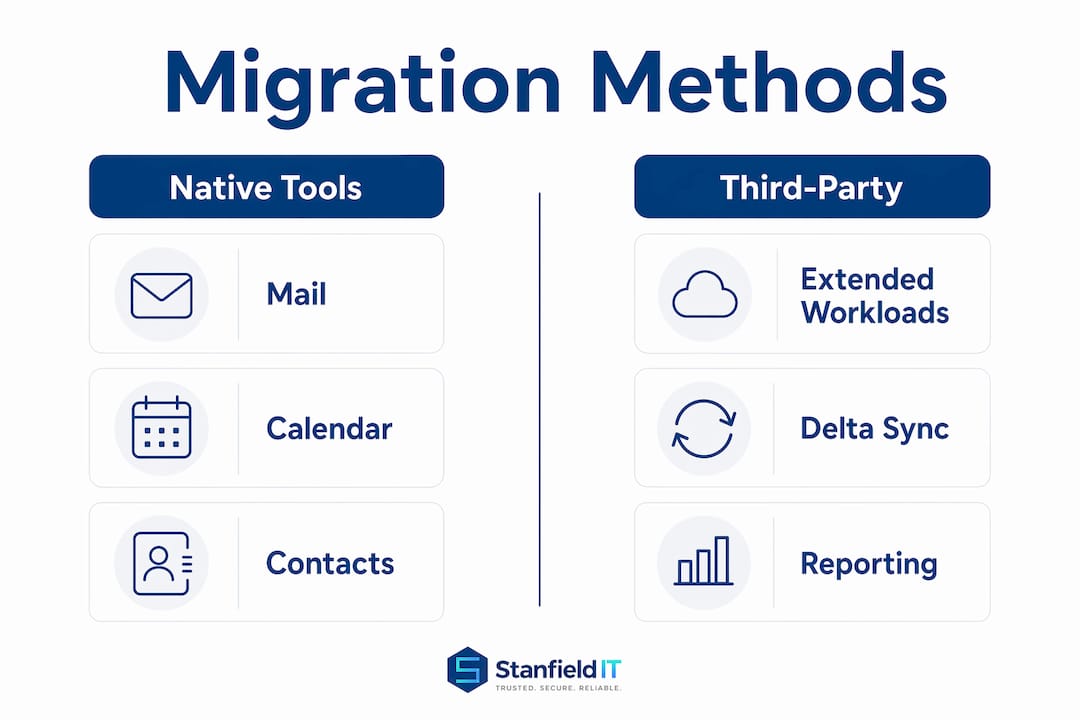
The gap is reporting depth, delta sync flexibility, and unified management across all workloads. Native tools require you to manage mail and Drive migrations in separate admin centres, with separate reporting.
When a third-party tool adds real value
Third-party migration platforms, including BitTitan MigrationWiz, add a single management interface across all workloads, automated delta syncing, detailed per-item reporting, and permission mapping for Shared Drives. MigrationWiz supports mail, Drive, Shared Drives, and some Teams metadata in a single project, with throughput controls and error retry logic that reduce manual intervention during large migrations.
Vendor evaluation checklist:
- Which workloads does the tool cover in a single project? (Mail, Drive, Shared Drives, Teams/chat, archives)
- Does it support delta sync for tight cutover windows?
- What reporting and logging does it provide per item, per batch, and per user?
- How does it handle Google API throttling?
- What are the security and credential handling controls? (Service account vs. user credentials, credential storage, audit logs)
- What is the support model during migration? (Business hours only, 24/7, dedicated engineer)
- What is the cost model? (Per-user, per-mailbox, project flat fee)
When an MSP is the better choice
An MSP engagement makes sense when your internal team lacks migration experience, when the tenant is large or complex, when regulated data requires documented governance, or when change management and user training are as important as the technical migration. A good MSP brings a tested methodology, project management, and accountability for outcomes, not just tooling. For Australian organisations with privacy obligations or healthcare data, an MSP with local experience in the Australian regulatory environment reduces both technical and compliance risk.
Typical timelines and cost factors for Australian organisations
Timeline and cost both scale with Drive volume, not mailbox count. Mail migration is fast; Drive migration is where projects run over.
Key cost drivers:
- Microsoft 365 licences (required for every migrated user before migration starts)
- Third-party tool fees, typically charged per user or per mailbox (MigrationWiz and similar platforms publish per-user pricing)
- MSP labour: project management, pilot execution, cutover support, and post-migration validation
- Bandwidth and storage: large Drive volumes require sustained upload capacity, particularly for regional offices on limited connections
- Testing and pilot overhead: allow for at least one full pilot cycle before production batches
Timeline examples:
- Under 50 users, minimal Drive: 2–5 days for mail migration using native EAC; Drive migration adds 3–7 days depending on volume. Total: roughly one to two weeks.
- 50–500 users, moderate Drive and Shared Drives: 3–6 weeks. Mail batches run in parallel with Drive migration; allow two weeks for Drive alone if Shared Drive volume is significant.
- 500+ users, complex permissions, regulated data: 2–4 months. Pilot, batch scheduling, change management, and compliance validation all add time. Drive is typically the longest lead item in large projects.
Practical tips to reduce time and cost:
- Run Drive migration in parallel with mail migration, not sequentially.
- Use delta sync in the final days before cutover to minimise the gap between last sync and MX switch.
- Lower MX TTL to 300 seconds at least 48 hours before cutover to reduce propagation delay.
- Sample Drive conversions early to identify heavy work items before they become cutover blockers.
- Batch users by department or location to help contain the impact of any issues.
Should you run the migration in-house or hire an MSP?
Questions to ask any provider
- How many Google Workspace to Microsoft 365 migrations have you completed in the past 12 months, and what was the average tenant size?
- How do you handle Google Drive and Shared Drives, specifically permission mapping and delta sync?
- What is your rollback plan if the cutover fails? How quickly can you revert MX records and restore mail flow?
- What backup do you take before migration starts, and how long do you retain it?
- What reporting do you provide during and after migration? Can we see per-user item counts and error logs?
- Do you have Australian client references, and how do you handle data residency requirements?
- What post-migration support is included, and for how long?
Red flags to watch for
- No delta sync capability: a provider who does a single-pass migration with no incremental sync before cutover is accepting unnecessary data loss risk.
- Vague rollback plan: “we’ll sort it out” is not a rollback plan. You need a documented process with defined triggers.
- No pilot offer: any credible provider will run a pilot before touching production data.
- Unclear credential handling: service account credentials and JSON keys are sensitive. If a provider cannot explain how they store and destroy credentials after migration, that is a security risk.
- No Australian references: data residency and privacy obligations under Australian law are specific. A provider without local experience may not know what they do not know.
Minimum deliverables to include in any engagement
- A documented pilot with defined success criteria and rollback triggers.
- Written acceptance criteria agreed before production migration begins.
- Per-user data integrity checks with a sign-off report.
- A post-migration support window of at least 10 business days.
- Confirmation of data residency: your Microsoft 365 tenant must be provisioned in Australian data centre regions if that is a compliance requirement.
For Australian SMEs evaluating Microsoft 365 consultant agencies, local experience with the Australian regulatory environment is a meaningful differentiator, not just a nice-to-have.
Australia-specific considerations: privacy, data residency, and the Stanfieldit approach
Australian Privacy Principles and cloud migrations
The Australian Privacy Principles (APPs) under the Privacy Act 1988 apply to any organisation that handles personal information, including during cloud migrations. During a Google Workspace to Microsoft 365 migration, your obligations include:
- Confirming that your Microsoft 365 tenant is provisioned in Australian data centre regions if your organisation has data residency requirements (Microsoft’s Australian data centres are in New South Wales and Victoria).
- Reviewing vendor contracts for both Google and Microsoft to confirm data handling, breach notification, and cross-border disclosure obligations are met.
- Documenting the migration process as part of your data governance records, particularly for healthcare organisations subject to the My Health Records Act 2012 or the Health Records Act.
- Establishing a breach notification process before cutover, so any data loss or exposure during migration is captured and reported within the 30-day window required under the Notifiable Data Breaches scheme.
For healthcare and professional services organisations, managed IT security services that include compliance support are worth engaging before migration planning begins, not after.
Data residency in Microsoft 365
Microsoft 365 allows Australian organisations to select Australian data centre regions for data at rest. Confirm your tenant’s data residency settings in the Microsoft 365 Admin Centre under Settings > Org settings > Organisation profile > Data location. If your tenant was provisioned outside Australia, a tenant-to-tenant migration or a geo-move request may be required before you can meet residency obligations.
The Stanfieldit approach for Australian clients
Stanfieldit works with Australian SMEs and professional services organisations on structured migrations that include a documented pilot, governance controls, secure credential handling, and local post-migration support.
Stanfieldit’s methodology addresses exactly that pattern: parallel Drive and mail workstreams, a pilot with defined acceptance criteria, and a post-cutover support window so users are not left without help on day one in the new environment.
Key takeaways
For most Australian organisations, the lowest-risk path is native EAC automated batch migration for mail, calendar, and contacts, combined with Migration Manager or a dedicated tool for Drive and Shared Drives.
| Point | Details |
|---|---|
| Start with native EAC for mail | Microsoft’s automated batch migration covers mail, calendar, and contacts at no extra cost for most tenants. |
| Treat Drive as a separate project | Drive and Shared Drives require Migration Manager or a third-party tool; start this workload at least two weeks before mail cutover. |
| Use a third-party tool or MSP for complex tenants | Tenants with 50+ users, significant Shared Drive volume, or regulated data benefit from delta sync, unified reporting, and managed governance. |
| Complete prerequisites before any batch | Domain verification, licence assignment, service account setup, and MX TTL reduction must be done before migration starts. |
| Stanfieldit for Australian compliance | Stanfieldit provides structured migration engagements with pilot, governance, and local post-migration support aligned to Australian Privacy Principles. |
What I’ve seen go wrong in Google Workspace migrations
Most of the migrations that land on our desk at Stanfieldit after a failed first attempt share the same pattern: the IT team moved mail cleanly, declared success, and then discovered that 80% of the organisation’s working files were still sitting in Google Drive with no migration plan in place.
Drive is where the complexity lives. Shared Drive permissions do not translate automatically, Google-native file formats convert imperfectly, and API throttling means large volumes take far longer than anyone budgets for. The teams that get through cutover without drama are the ones that started Drive migration three weeks before they touched a mailbox, ran a conversion sample on their most complex files, and had a documented rollback plan that everyone had actually read.
The other pattern worth calling out: organisations that skip the pilot. A pilot is not a formality. It is the only way to find out whether your specific combination of Gmail labels, calendar sharing, Drive structure, and user behaviour produces the results you expect. Every migration has at least one surprise. A pilot means that surprise happens to 10 users, not 300.
For Australian organisations with privacy obligations, the compliance piece is not optional. Confirming data residency, reviewing vendor contracts, and documenting the migration process are not box-ticking exercises. They are the difference between a migration that satisfies your APP obligations and one that creates a notifiable data breach.
Stanfieldit migration services: what’s included and how to start
Stanfieldit manages Google Workspace to Microsoft 365 migrations for Australian businesses that want the technical work done properly, without the internal overhead of running it themselves. The engagement covers migration planning and scoping, pilot execution with defined acceptance criteria, full mail and Drive migration, post-cutover validation, and a support window so your team has help when users hit issues on day one.

The difference from a DIY approach is accountability. Stanfieldit owns the outcome, not just the tooling. That includes the rollback plan, the compliance documentation, and the user communication that makes the difference between a migration your staff barely notice and one that generates a week of helpdesk tickets.
To start a conversation, contact Stanfieldit for a migration scoping call. We will assess your tenant size, Drive volume, compliance requirements, and timeline, and give you a clear picture of what the migration involves before you commit to anything.
Useful sources and further reading
The following Microsoft Learn articles are the authoritative step-by-step references for administrators running this migration. Read the Microsoft documentation alongside this guide for the exact command syntax and current UI steps.
- Perform a Google Workspace migration to Microsoft 365 or Office 365: Microsoft’s primary reference covering the full EAC migration process, prerequisites, and known limitations including MRM policy handling.
- Migrate business email and calendar from Google Workspace: Microsoft’s recommended automated batch migration path, with guidance on staged rollout and keeping both environments active during migration.
- Perform an automated Google Workspace migration in EAC: Detailed steps for the automated EAC path, including JSON key import, endpoint concurrency settings, and filtering parameters such as
-ExcludeFolderand-SkipRules. - Migrate Google Workspace mailboxes via IMAP: Microsoft’s IMAP migration guide for small tenants and consumer Gmail accounts, covering app passwords, CSV format, and MX cutover steps.
- Switch from Google Workspace to Microsoft 365 for business: Microsoft’s overview of the full transition, useful for project planning and communicating scope to stakeholders.
- Google Workspace migration to Microsoft 365 (2026 Guide) — Email Signature Help: A practitioner-oriented summary comparing native and third-party tooling approaches, with useful notes on Drive complexity and delta sync strategy. Practitioner commentary rather than official documentation.